








Learn how to add AOL email to Outlook 365 with AOL to Office 365 Tool and manual method that can add emails from AOL mail to O365 with batch mode.
Managing emails across multiple platforms can often be cumbersome, which is why many users prefer consolidating their email accounts into one application. Microsoft Outlook 365 offers powerful organizational tools, seamless integration with other Microsoft services, and enhanced security, making it a preferred choice for email management. In this blog, we’ll guide you through the process on how to add AOL email to Outlook 365, explain the reasons why this migration can be beneficial, discuss the manual method, and alternative solution.
AOL, once a pioneer in internet services, continues to provide a reliable email service to its users. Though AOL’s popularity has waned over the years, many users still rely on AOL Mail for their personal and business communication.
Microsoft Outlook 365 is a comprehensive email client that integrates with Microsoft 365 (formerly Office 365) for managing emails, contacts, calendars, and tasks. It offers robust features for businesses and individuals alike, providing an all-in-one solution for productivity and email management.
Reasons to Add AOL Email to Outlook 365
- Centralized Email Management - Combining AOL with Outlook allows you to manage all your emails from a single interface, enhancing productivity.
- Advanced Organizational Tools - Outlook offers superior features like categorized folders, email sorting, and tagging that make email organization much easier.
- Enhanced Security - Outlook 365 provides built-in encryption and multi-layered security protocols to keep your emails safe from phishing and malware attacks.
- Offline Access - One of Outlook’s standout features is the ability to access emails offline, which is especially useful for users who need uninterrupted access to their communication.
- Seamless Integration with Microsoft Services - Adding your AOL account to Outlook 365 allows you to integrate emails with calendars, tasks, and other productivity apps from Microsoft.
How to Add AOL Email to Outlook 365 with Manual Method
Here’s how you can manually add your AOL email to Outlook 365 -
Step 1: Enable App Password in AOL
- Log into your AOL Mail account.
- Go to “Account Security.”
- Enable two-step verification if it’s not already enabled.
- Under “App Password,” generate a new password for Outlook. Make sure to copy this password for use in the next step.
Step 2: Add AOL Account in Outlook
- Open Outlook 365 on your system.
- Go to the File tab and click on Add Account.
- Enter your AOL email address and click Connect.
- When prompted for the password, enter the app password you generated from AOL.
- Outlook will automatically configure the server settings. Once done, click Finish to complete the process.
Step 3: Access AOL Emails in Outlook
- Once the setup is complete, Outlook will sync your AOL emails. You can now access and manage your AOL emails directly from Outlook 365.
Drawbacks of the Manual Method
- Lengthy Setup Process - The manual method can be time-consuming, especially for users unfamiliar with the process.
- Potential Configuration Issues - Incorrect settings or missed steps during configuration can lead to email syncing errors.
- No Backup Option - There is no automated backup feature in the manual method, putting your AOL emails at risk if any issue occurs during the process.
- Lack of Selective Syncing - The manual method doesn’t allow you to sync only specific folders, so all emails and folders are migrated together.
- Limited Control Over Migration - You won’t have detailed control over the migration process, such as scheduling sync or filtering certain types of emails.
How to Add AOL Email to Outlook 365 with Alternative Solution
To avoid the limitations of the manual method, the MacMister AOL Backup Tool for Mac is an excellent alternative. It simplifies the process of adding AOL email to Outlook 365 and provides additional features, such as -
- Selective Email Migration - Choose specific folders or date ranges to migrate rather than syncing the entire account.
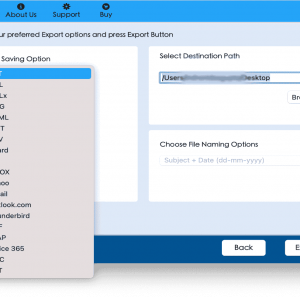
- Multiple Output Formats - Convert AOL emails to PST, EML, MSG, PDF, and other formats.
- Batch Migration - Migrate multiple AOL accounts at once, saving time for users who manage multiple emails.
- Safe and Secure - The tool ensures no data loss during migration and provides encrypted transfer for data protection.
- User-Friendly Interface - Even non-technical users can easily add AOL email to Outlook 365 without hassle.
Conclusion
Adding your AOL email to Outlook 365 helps consolidate your emails and provides access to Outlook’s advanced productivity and security features. While the manual method allows you to achieve this, it comes with several drawbacks, including the risk of errors and no backup option. For a more efficient and secure process, the tool is a superior alternative, offering advanced features like selective migration, bulk transfer, and multiple format conversions.